Create a subscription payment link
Updated 5 months ago
A subscription payment link allows your customers to subscribe to a recurring payment that will be automatically deducted from their cards every billing cycle (yearly, monthly, daily or even hourly). Your customers can access your different subscription payment pages through the links that Flutterwave will generate for you.
How do you create a subscription payment link?
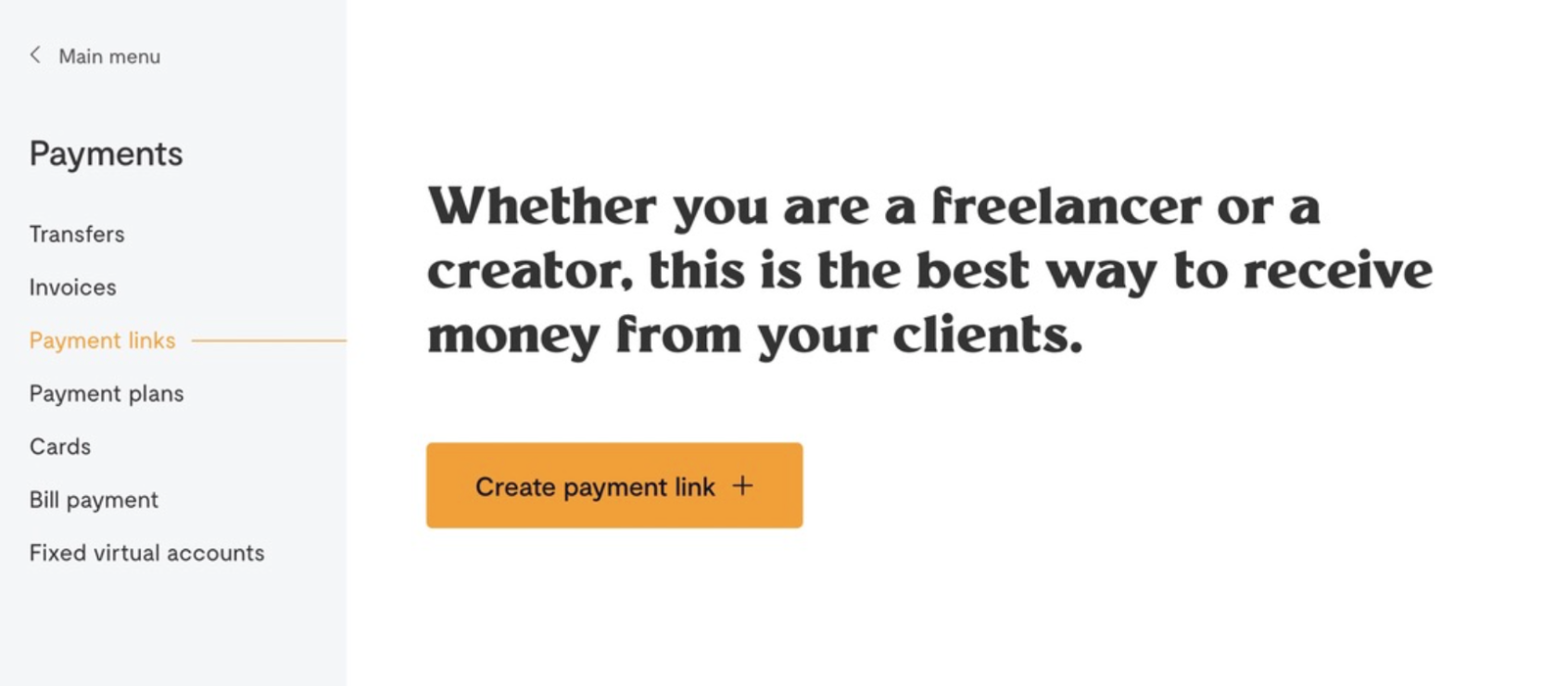
On the left side of your dashboard, locate the “Payments” button and click on it. Then select “Payment Links”
Create a payment link by clicking on New payment link.
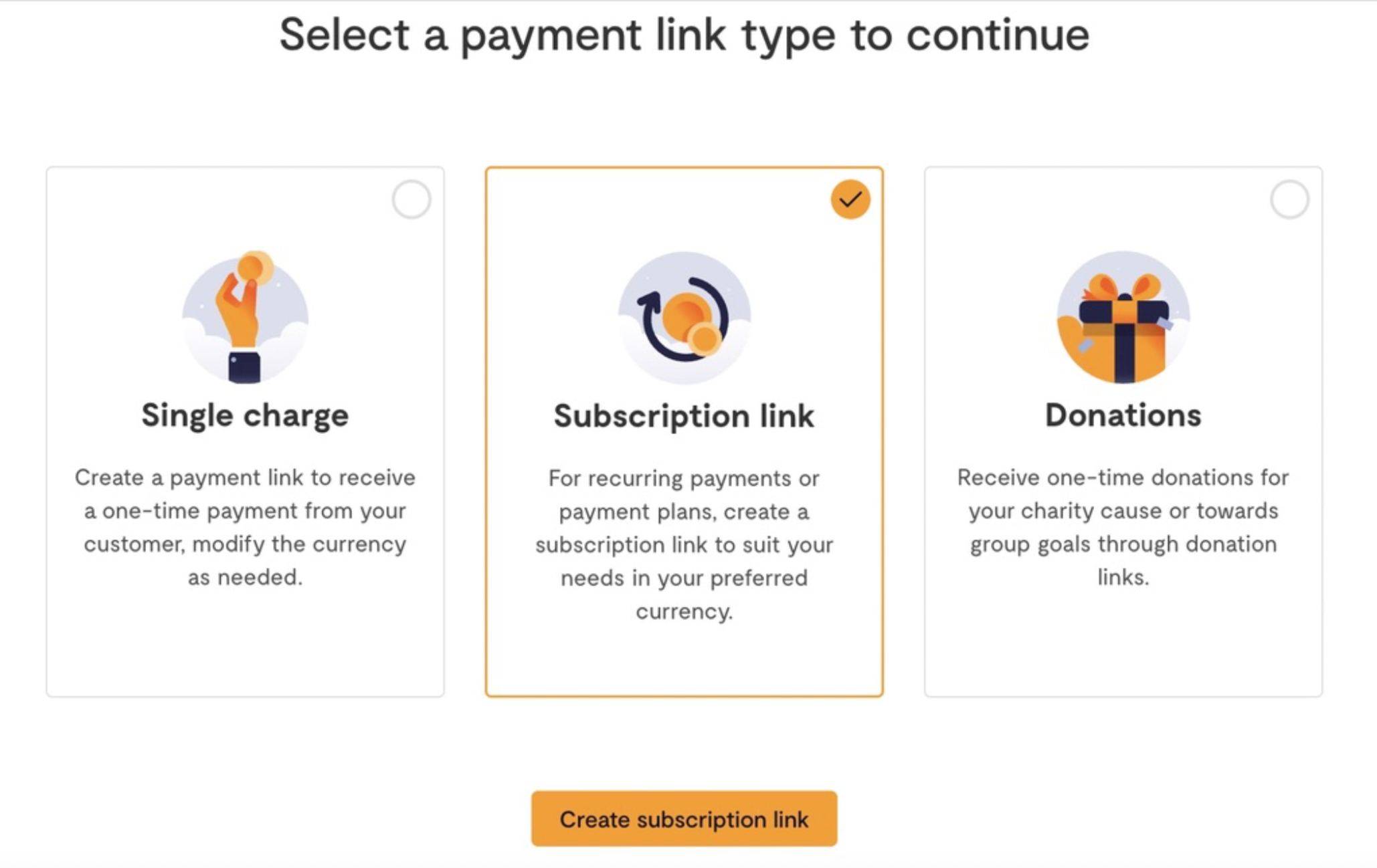
Choose the "Subscription link" option to create a subscription link
Fill in the details such as the page name, description of the subscription page, intervals of payments which can be hourly, daily, monthly or yearly and the number of times the customer is to be charged after the first payment. There’s also an additional details button which is optional but contains items like a custom url for the payment link and also a redirect page link which can take your customers to a specific page you want them to visit after payment.
Select “Create Link” to create the link to your subscription payment page.
Once the subscription payment link is created, you get a payment link and QR code which you can share with your customers for them to access your payment page and subscribe to the payment plan.
How do I see my transactions on a Subscription Payment?
On your the left side of your dashboard, click on the “Payments” button and select “Payment Links”
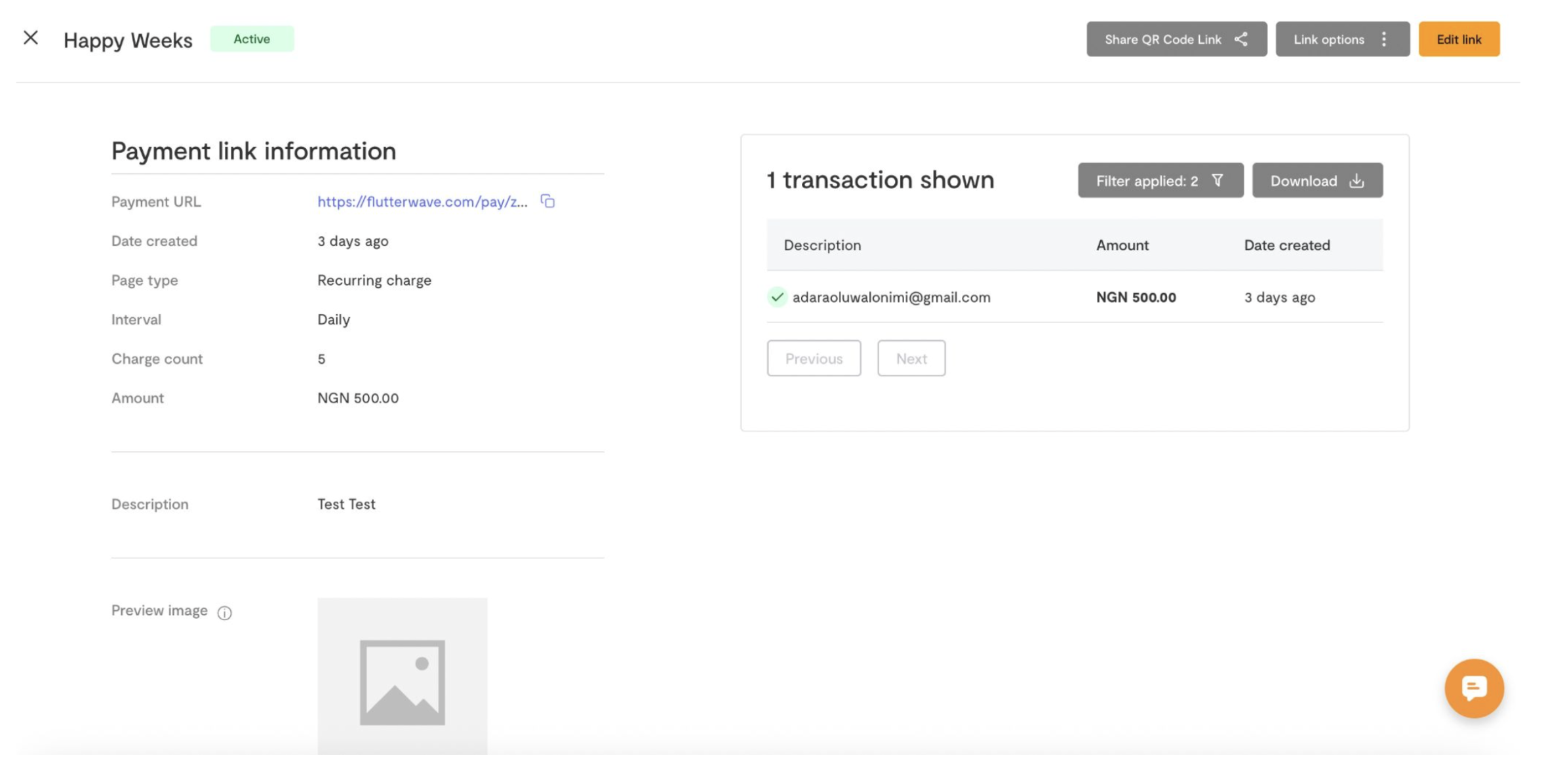
A list of all existing single and subscription payment pages are listed.
Select the payment link you want to check transactions for.
The transactions page is on the right side of the page. You can use the filter button to select the date range for the transactions you’re interested in.
How to edit or deactivate a subscription payment link
On your dashboard, click “Payments” and select “Payment Links”
Select the payment link you want to edit or deactivate
To edit a subscription links page name, click on the “Edit link” button and you can make changes to the page name and description.
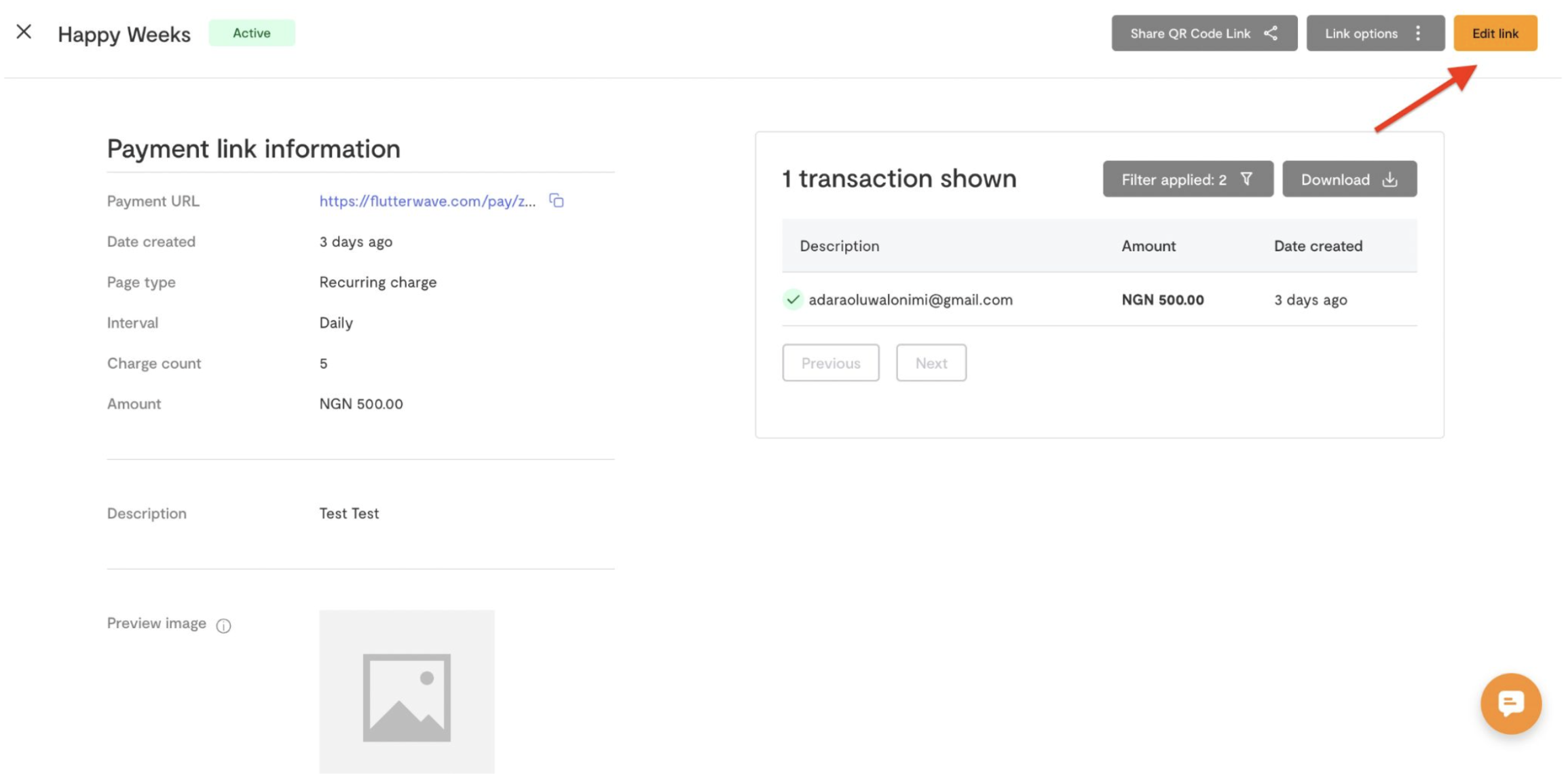
To deactivate a subscription page, click "Link options" at the top right then click "Deactivate payment link"
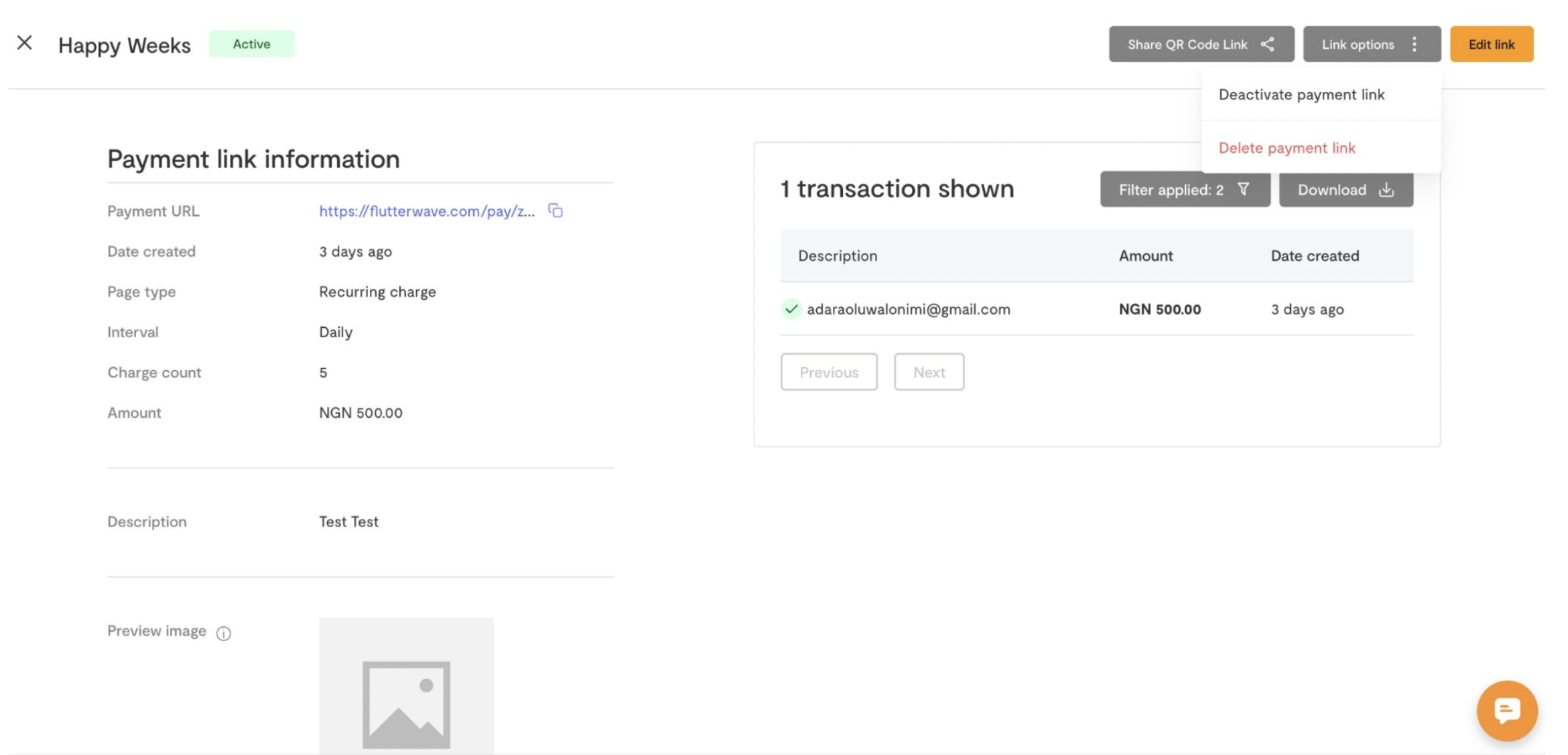
To delete a subscription page, click "Link options" at the top right then click "Delete payment link"
To cancel a subscription payment link
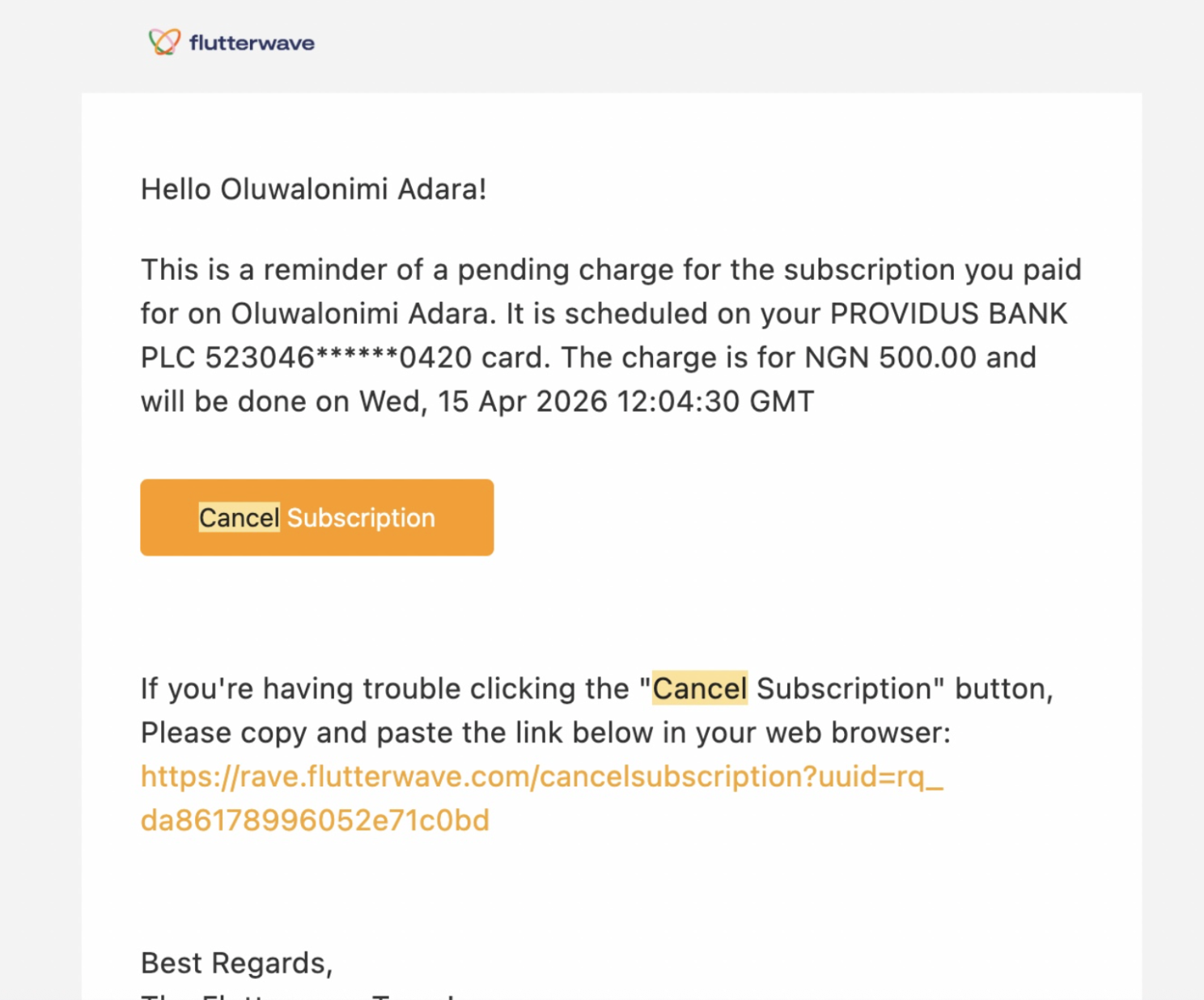
As a customer, you can subscribe to a payment link and you will be charged at every billing cycle. If you want to cancel your subscription to that payment link:
You will typically receive an email that looks like the one below when you subscribe to a payment link. Click on the "Cancel Subscription" button
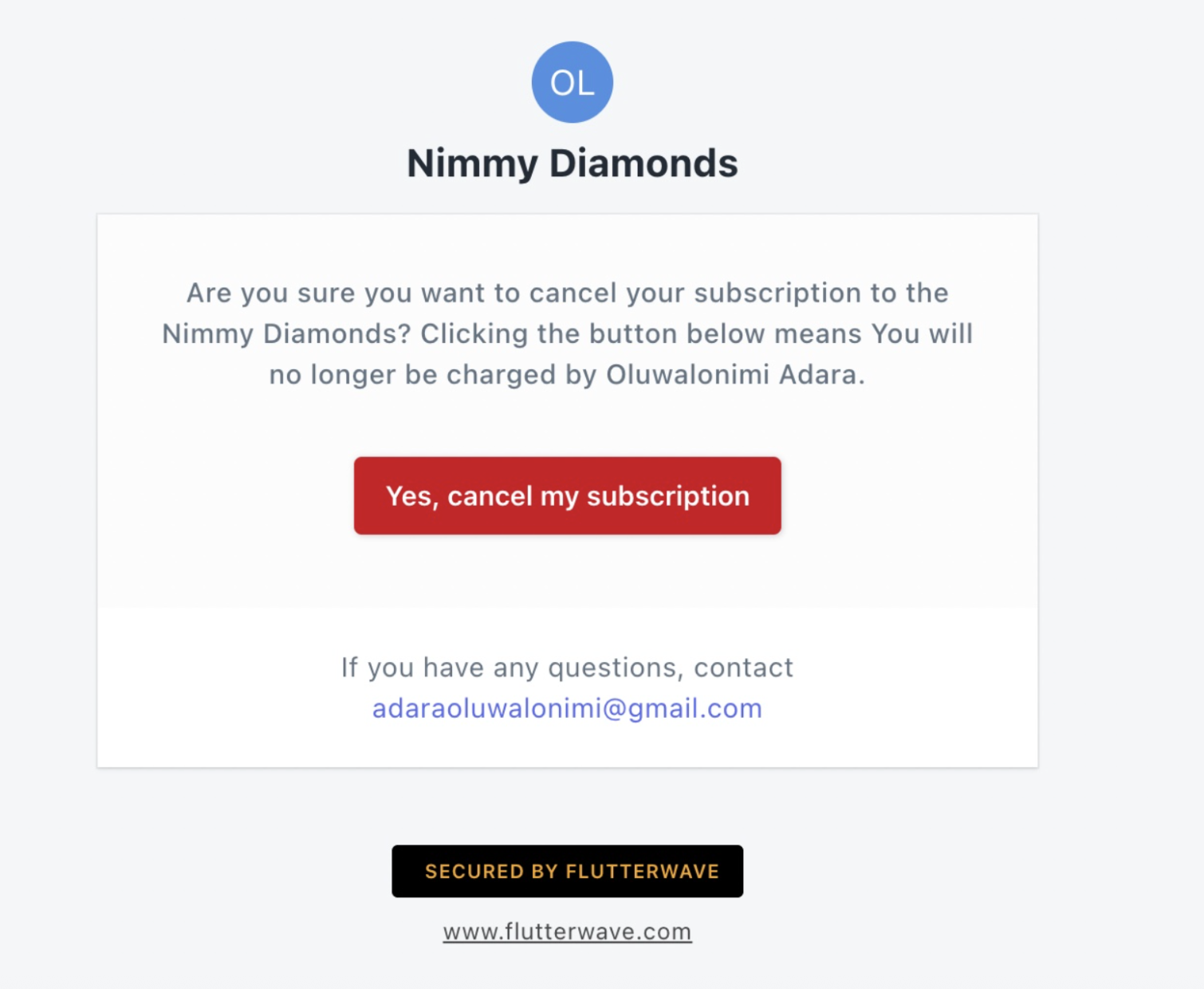
You will be redirected to a page that looks like the one below. Click "Yes, cancel my subscription"
We'd like to hear from you
Suggest the type of support articles you'd like to see
Still need help?
Get in touch if you have more questions that haven’t been answered here